Inventory
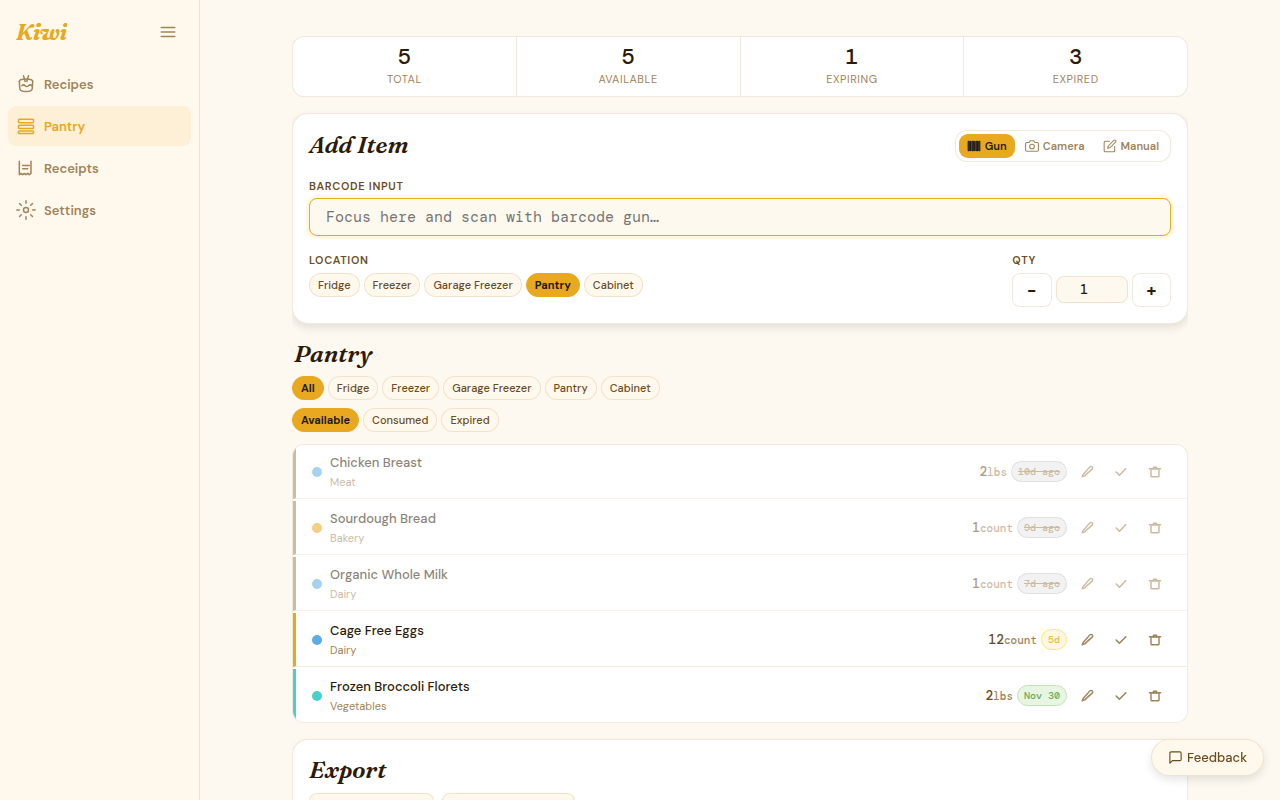
The inventory is your pantry. Every item you add gives Kiwi the data it needs to show pantry match percentages, flag expiry, and rank recipe suggestions.
Adding items
By barcode
Tap the barcode scanner icon. Point your camera at the barcode on the product. Kiwi checks the open barcode database and fills in the product name and category.
If the product isn't in the database, you'll see a manual entry form pre-filled with whatever was decoded from the barcode — just add a name and save.
By receipt
Upload a receipt photo in the Receipts tab. After the receipt is processed, approved items are added to your pantry in bulk. See Receipt OCR for details.
Manually
Click Add item and fill in:
| Field | Required | Notes |
|---|---|---|
| Name | Yes | What is it? |
| Quantity | Yes | Number + unit (e.g., "2 cans", "500 g") |
| Expiry date | No | Used for expiry alerts and leftover mode |
| Category | No | Helps with dietary filtering |
| Notes | No | Storage instructions, opened date, etc. |
Editing and deleting
Click any item in the list to edit its quantity, expiry date, or notes. Items can be deleted individually or in bulk via the selection checkbox.
Expiry alerts
Kiwi flags items approaching expiry with a color indicator:
- Red: expires within 2 days
- Orange: expires within 7 days
- Yellow: expires within 14 days
The Leftover mode uses this same expiry window to prioritize nearly-expired items in recipe rankings.
Inventory stats
The stats panel (top of the Inventory page) shows:
- Total items in pantry
- Items expiring this week
- Breakdown by category
- Items added this month
CSV export
Click Export to download your full pantry as a CSV file. The export includes name, quantity, category, expiry date, and notes for every item.
Bulk operations
- Select multiple items with the checkbox column
- Delete selected — remove items in bulk
- Mark as used — remove items you've cooked with (coming in Phase 3)